

Step 1
Open the Mars eSIM App
Open the Mars eSIM App and sign in.
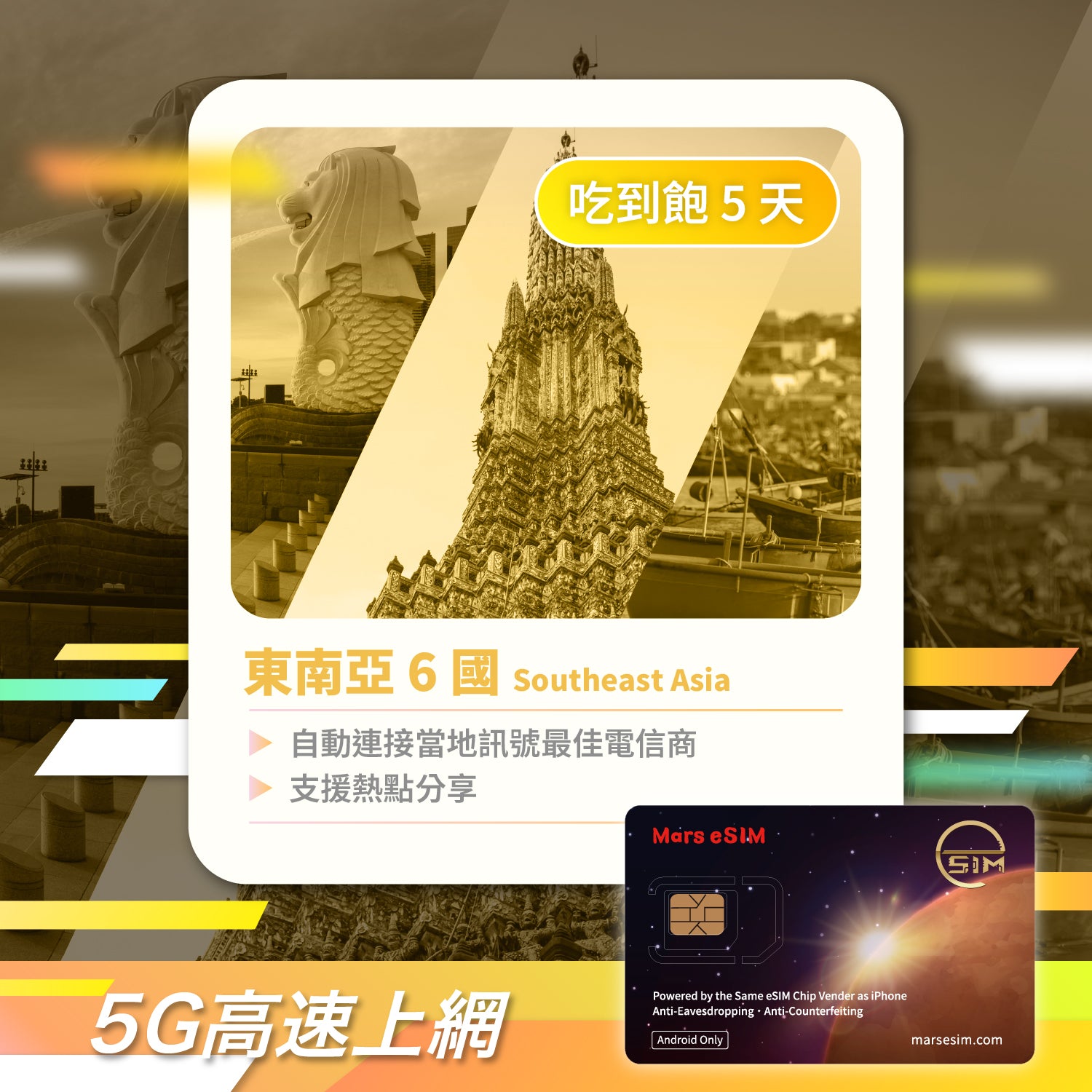
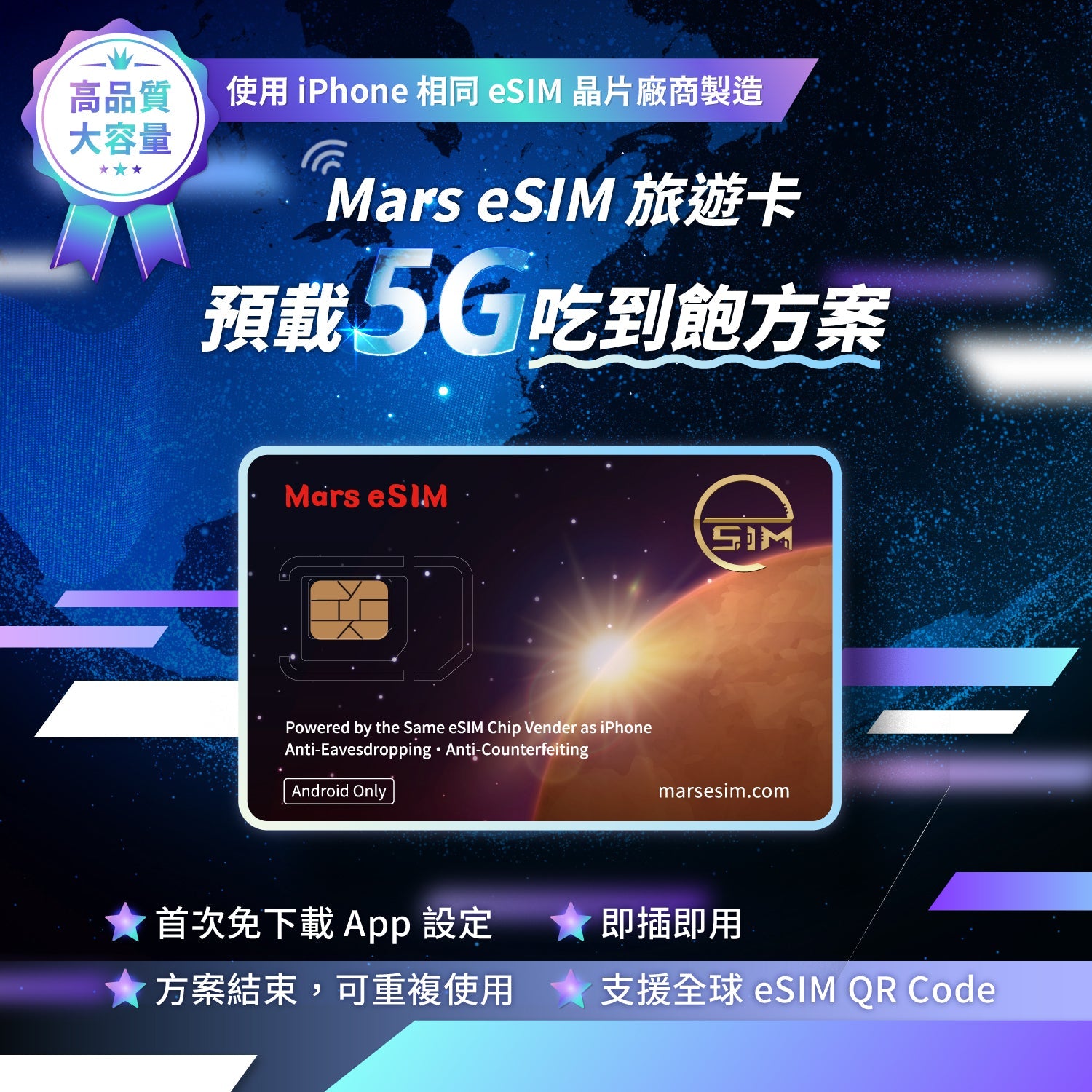
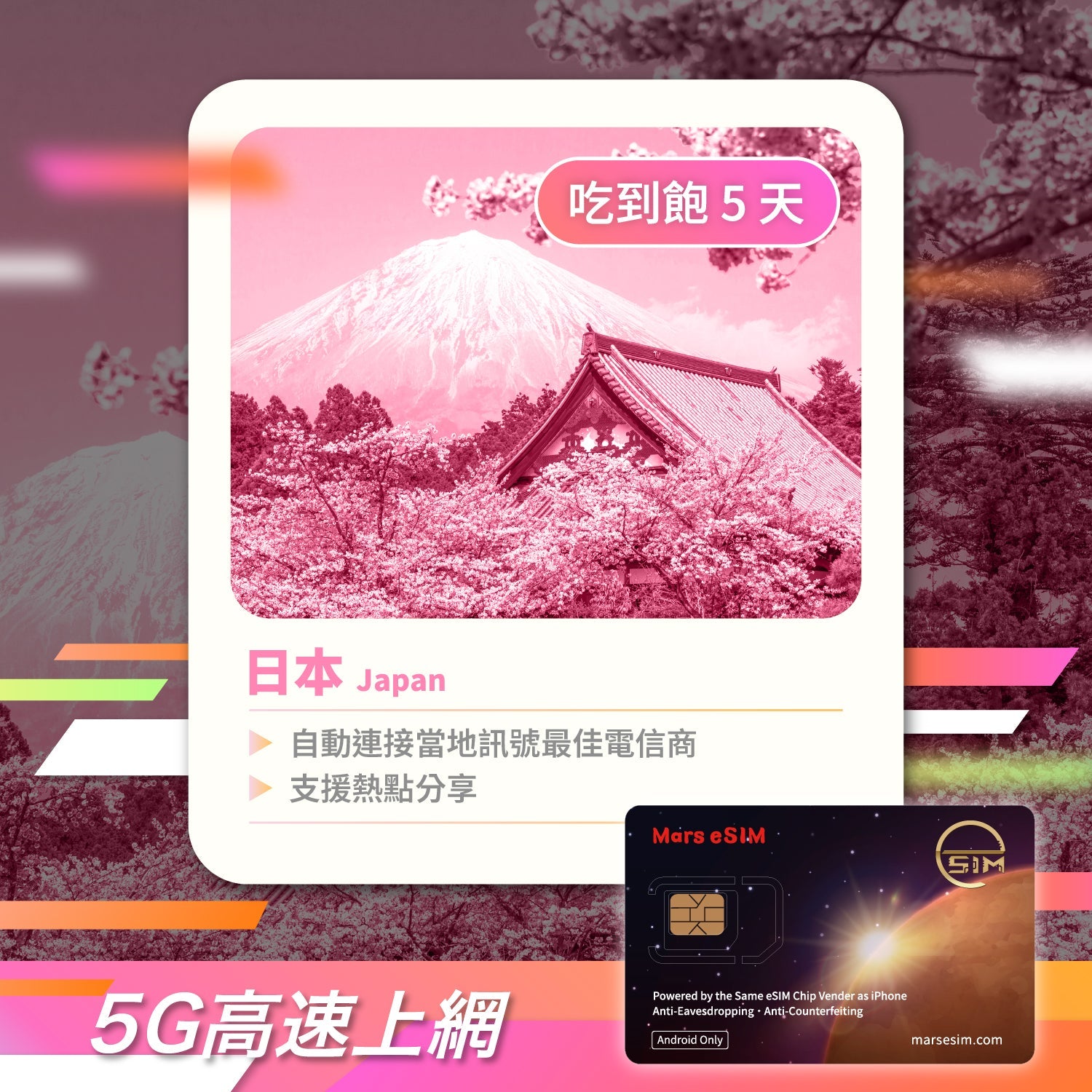
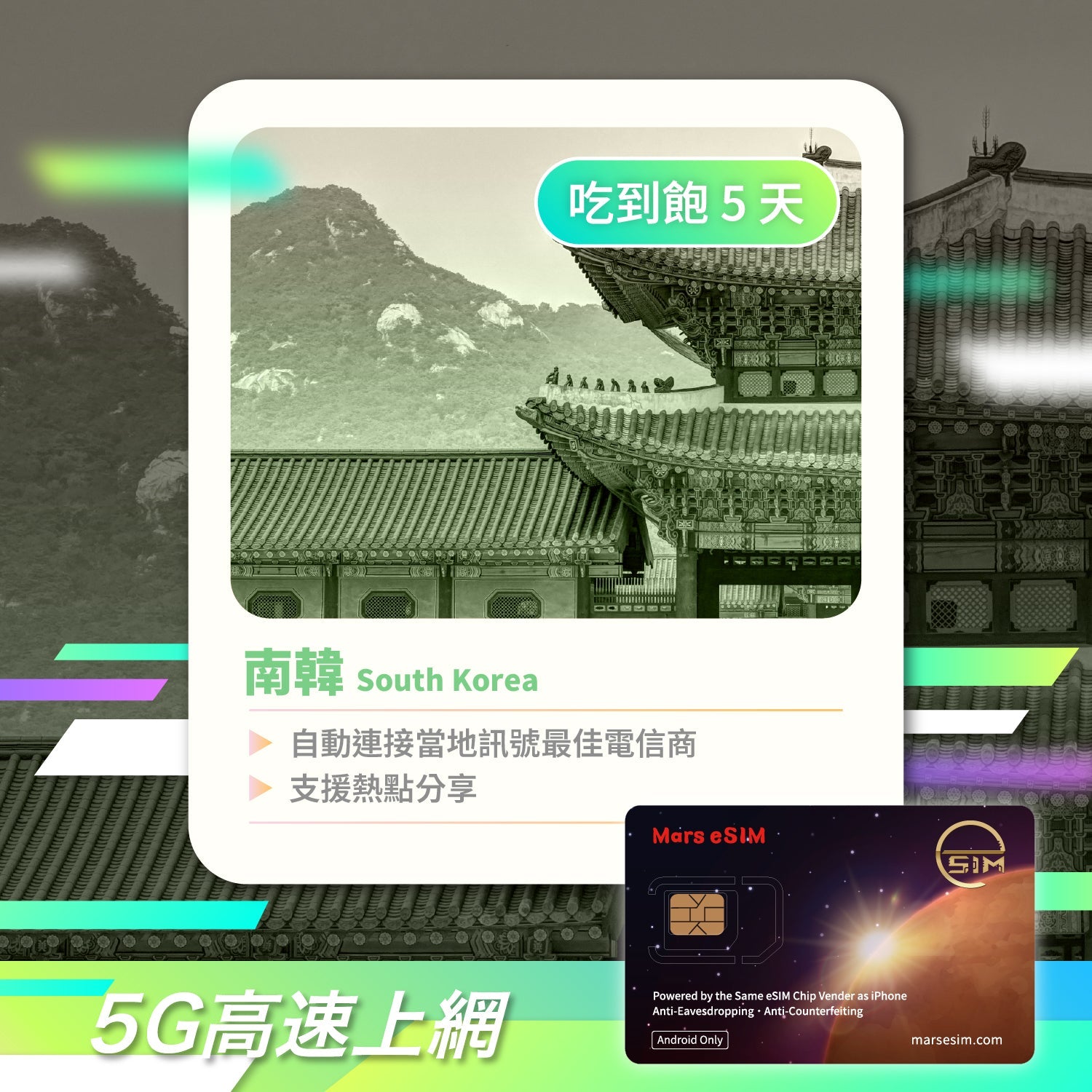
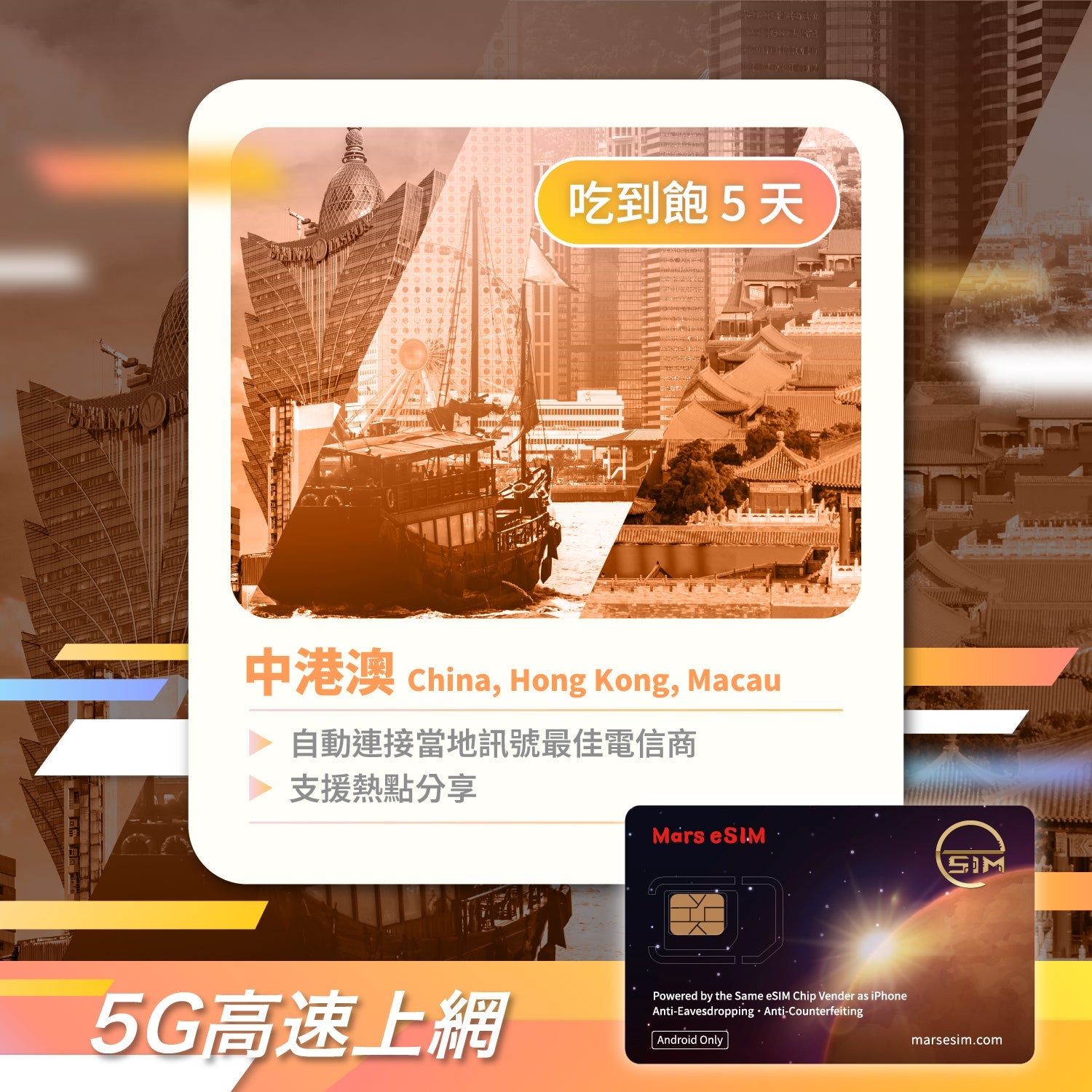
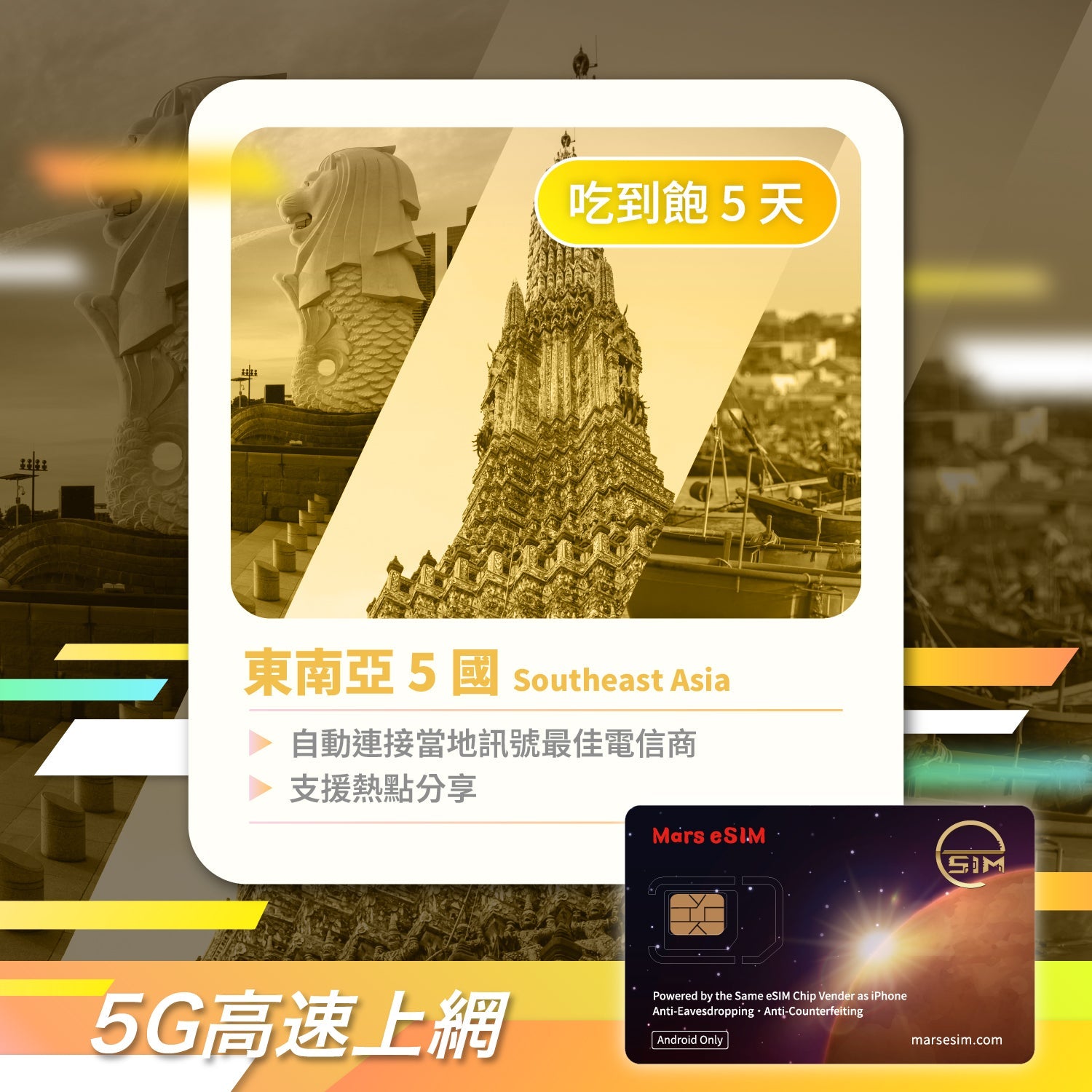
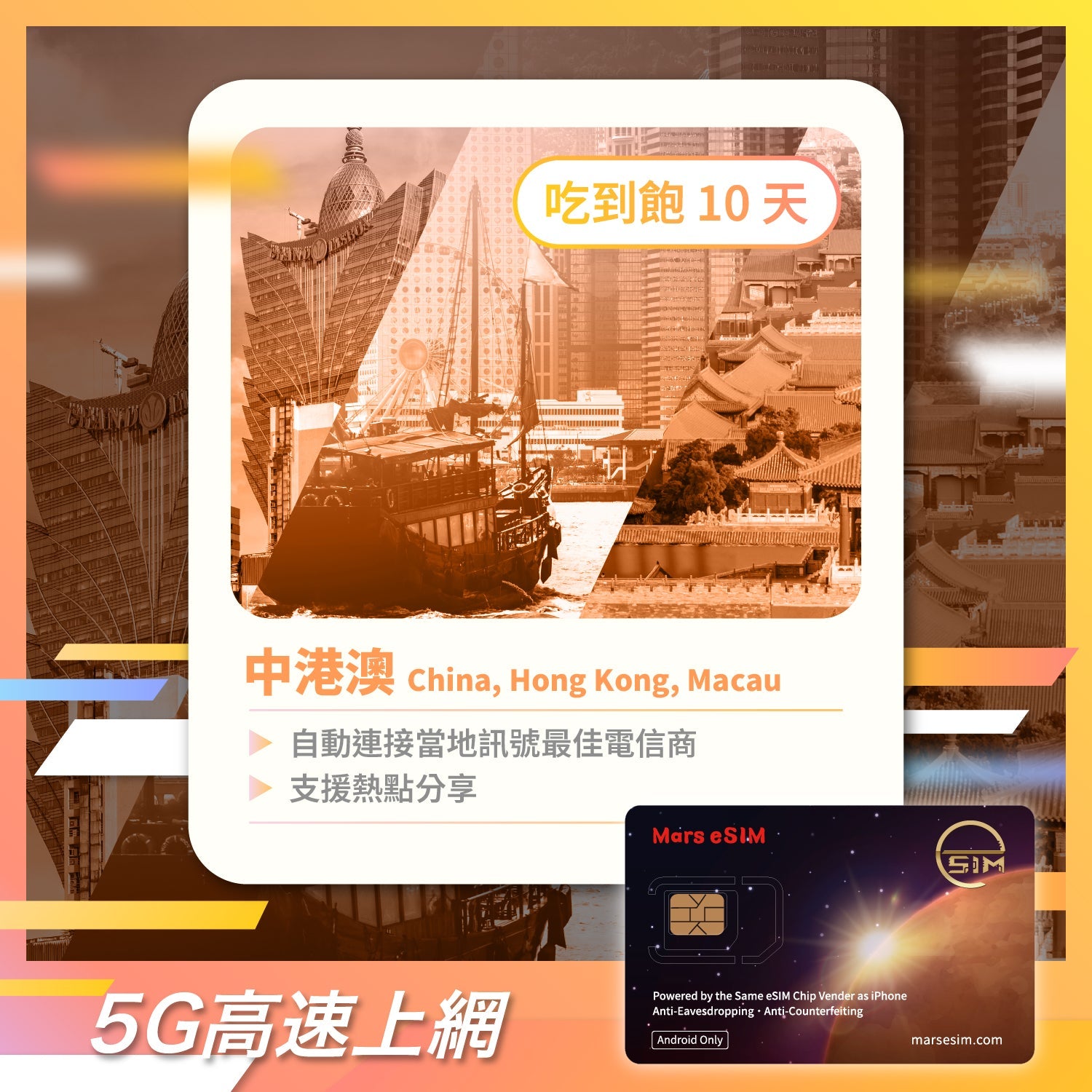
• This product comes with a preloaded 5G unlimited data plan. After receiving the card, simply insert it into your phone’s physical SIM card slot to activate the service.
• Please make sure your phone is not locked to a specific carrier and has no SIM Lock. If your phone is carrier-locked, such as some contract phones purchased overseas, this product cannot be supported or used, whether with the preloaded plan or for future use through the App.
• The preloaded plan must be activated within 90 days after placing the order. Activation means that you have arrived at the destination covered by the plan and your phone has successfully connected to the local mobile network for data transmission. If the plan is not connected to the network at the destination within 90 days, the preloaded plan will automatically expire.
• The preloaded plan supports all unlocked phones and tablets with a physical SIM card slot, including iPhone and iPad.
• After the preloaded plan ends, if you wish to reuse the card to install and manage multiple global eSIM plans, you must use a compatible Android phone with the Mars eSIM App.
• At this stage, all mobile phone models purchased in Mainland China, as well as devices running Huawei HarmonyOS, are not supported.
• Please make sure your phone is running Android 9.0 or above before placing an order. Older system versions are not supported by this product.
• Before purchasing, please search for and try downloading the Mars eSIM App from the Google Play Store. If your device cannot find the App or shows “Your device is not compatible,” it means your device does not meet the hardware requirements. Please do not purchase.
• eSIM plans purchased from other platforms or providers may not be installable on the Mars eSIM Physical Card due to their own settings or restrictions. Before purchasing a third-party eSIM plan, please confirm with the platform or provider whether the plan supports installation through a third-party App or on the Mars eSIM Physical Card.
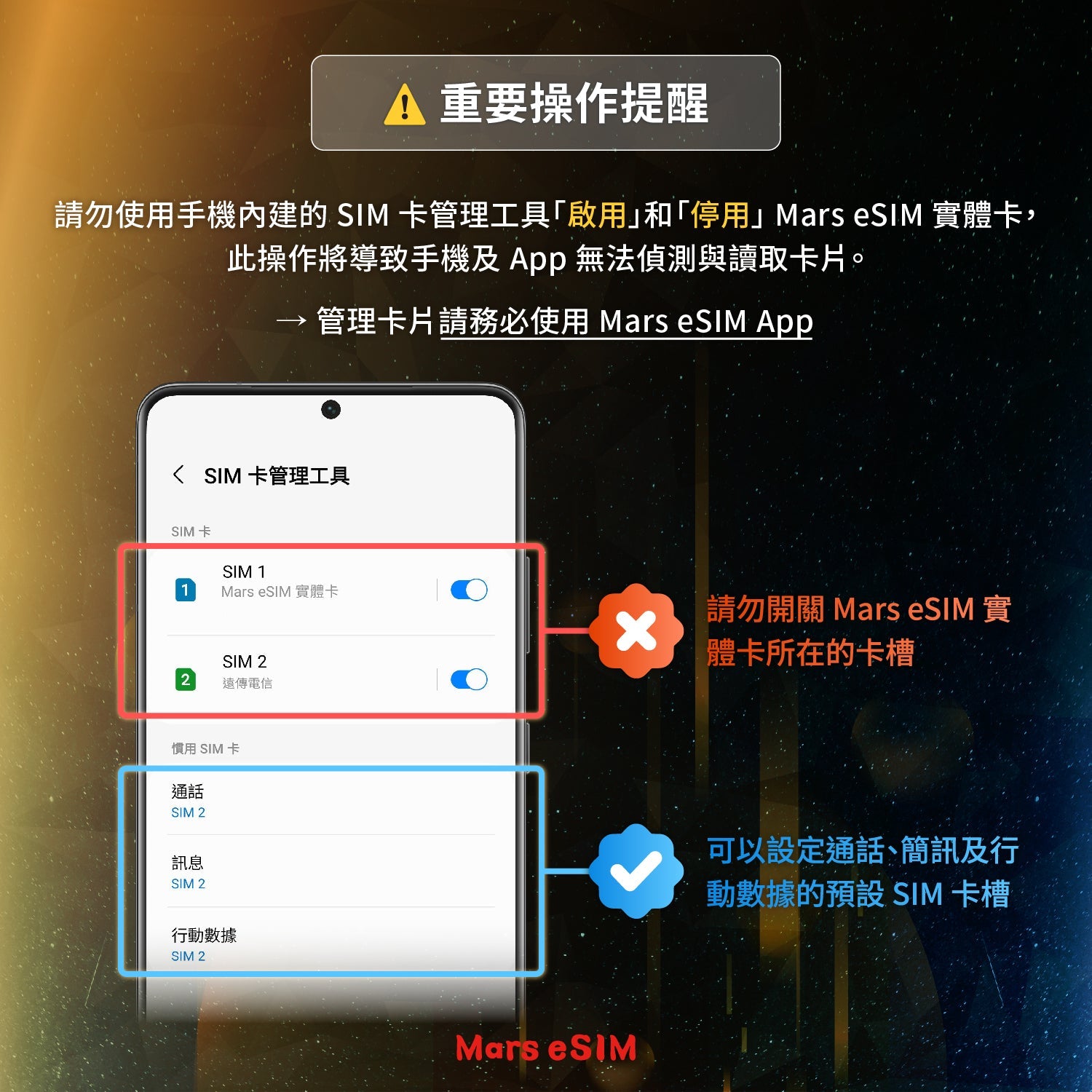
Please DO NOT “Enable” or “Disable” the Mars eSIM physical card through your phone’s built-in SIM card manager. Doing so may prevent both your phone and the App from detecting or reading the card.
• This product must be inserted into a physical SIM card slot. If your phone only has one physical SIM slot and you wish to keep using your original phone number, please contact your carrier to convert your original physical SIM card to an eSIM first, so the physical SIM slot can be used for this product.
• If your phone supports dual SIM, please note that two Mars eSIM physical cards cannot be installed in the same phone at the same time. Each device can only detect and operate one Mars eSIM physical card at a time.
• No hardware warranty or reissue is provided. We recommend testing app connectivity during the inspection period to ensure long-term compatibility.
7-Day Cooling-off Period Notice
In accordance with the "Consumer Protection Act," this product is entitled to a 7-day cooling-off period (inspection period) starting from the day after receipt. Please note that the cooling-off period is not a trial period; it is only for you to inspect whether the product's outer packaging, appearance, and specifications meet your needs.
Return Restrictions and Conditions
Products applied for return must remain in brand-new condition with complete packaging. If any of the following conditions occur, your return rights will be affected:
• The product seal has been removed, or the SIM card has been detached from the holder (card peeling).
• The packaging is damaged or lost.
Special Refund Restrictions for Data Plans
If, after the product is returned, the technical backend verifies that the data plan has been activated or shows usage records, the plan will be considered consumed even if the physical packaging is intact. In this case:
• Refunds will only be issued for the Mars eSIM physical card.
• Fees for the data plan will not be refunded.
• The maximum total refund amount is the total amount of the order.
Defective Product Handling
If non-human factor damage is discovered within seven days of receipt (e.g., obvious appearance defects, chip unreadable), please contact customer service immediately. Once determined to be a product defect, we will provide a free replacement service.
Return Procedure
Please contact customer service first to obtain return authorization.
1. Return the product: Please send the product back to the designated address within seven days of obtaining consent. Be sure to use a trackable shipping method (such as registered mail, courier, or convenience store shipping) and pack it properly to avoid damage during transit.
2. Late applications will not be accepted: If the product is not sent back within seven days after the return is approved, the return application will no longer be accepted.
Refund Process
After receiving the returned product and confirming that it meets the conditions, we will complete the credit card refund or payment refund procedure within 7-14 business days. Please pay attention to the refund notification or billing information from your issuing bank afterward.
• Preloaded Plans & Duration:
Japan: 5 Days
South Korea: 5 Days
China, Hong Kong, Macau: 5 Days, 10 Days
Supports internet access in China without the need for a VPN. Once activated, you can use LINE, Facebook, Instagram, Google, YouTube, Netflix, and other platforms without firewall restrictions. (ChatGPT and TikTok are not supported.)
Southeast Asia 6-Country: 5 Days
(Applicable to Indonesia, Malaysia, Philippines, Singapore, Thailand, Vietnam.)
(Network performance may vary based on location, terrain, building obstructions, user traffic, and weather conditions.)
• Activation Deadline: 90 Days
This preloaded plan must be activated within 90 days of purchase. "Activation" refers to arriving at the covered destination and successfully connecting to the local mobile network for data transmission. If the card is not connected within 90 days, the preloaded plan will automatically expire.
• Data Options: Unlimited
• Plan Activation: By calendar day, ending at 23:59 (UTC+8 Taiwan time).
(For example: If you purchase a 3-day eSIM plan and activate it on April 1st at 10:00 PM, the first day will end at 11:59 PM on the same day. The plan will expire at 11:59 PM on April 3rd.)
• Network: 5G
(The network may automatically switch to 4G depending on local signal quality)
• Carrier:
Indonesia: Indosat Ooredoo
Philippines: Globe Telecom, Inc.
Malaysia: Celcom, DIGI
Singapore: Singtel Singapore
Thailand: True Corporation, AIS
Vietnam: Viettel
See Global Mobile Network Operators List for more details.
• APN: Automatic
(If you have custom APN settings, please reset to auto.)
• Voice/SMS: Not supported (Only supports app-based calls, e.g., LINE)
• Hotspot: Supported
(Hotspot capability depends on device model and may be subject to FUP restrictions.)
• Fair Usage Policy (FUP): To maintain overall network quality, local telecom operators may enforce Fair Usage Policy (FUP). This policy is designed to prevent individual users from consuming excessive bandwidth over a short period of time. If your data usage exceeds the carrier’s fair usage threshold, your connection speed may be temporarily reduced to ensure stable and fair access for all users on the network.
If you have any questions, you are always welcome to contact us. We'll get back to you as soon as possible, within 24 hours on weekdays.
Shipping Information
Use this text to answer questions in as much detail as possible for your customers.
Customer Support
Use this text to answer questions in as much detail as possible for your customers.
FAQ’s
Use this text to answer questions in as much detail as possible for your customers.
Contact Us
Use this text to answer questions in as much detail as possible for your customers.
9.2 cm x 6 cm
⚠️ Important Notice: Currently, all devices purchased in Mainland China and those running Huawei HarmonyOS are not supported.
Unlimited eSIM downloads
Store up to 10 plans (depending on actual file size)
Support for offline activation and deactivation


Open the Mars eSIM App and sign in.
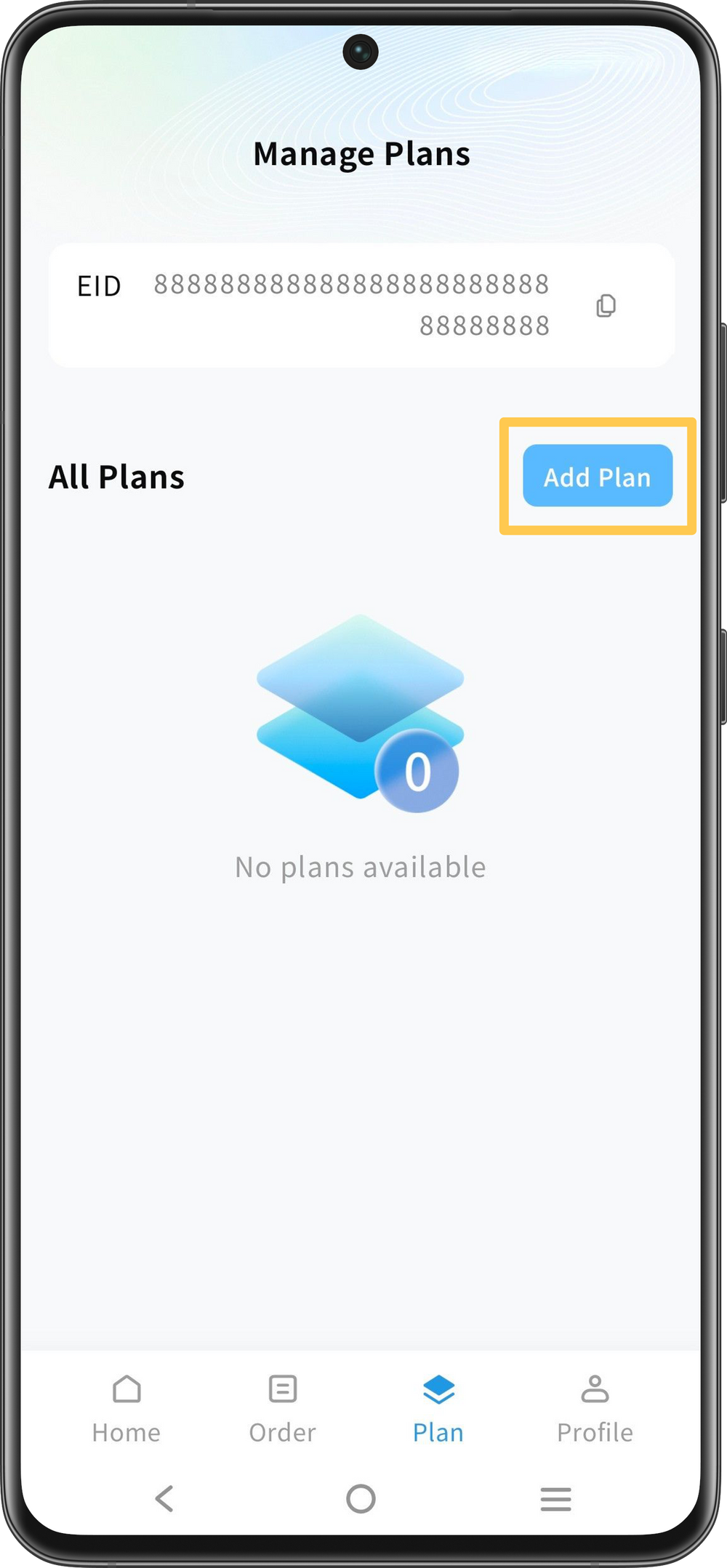
Tap “Plans”, then “Add Plan”.
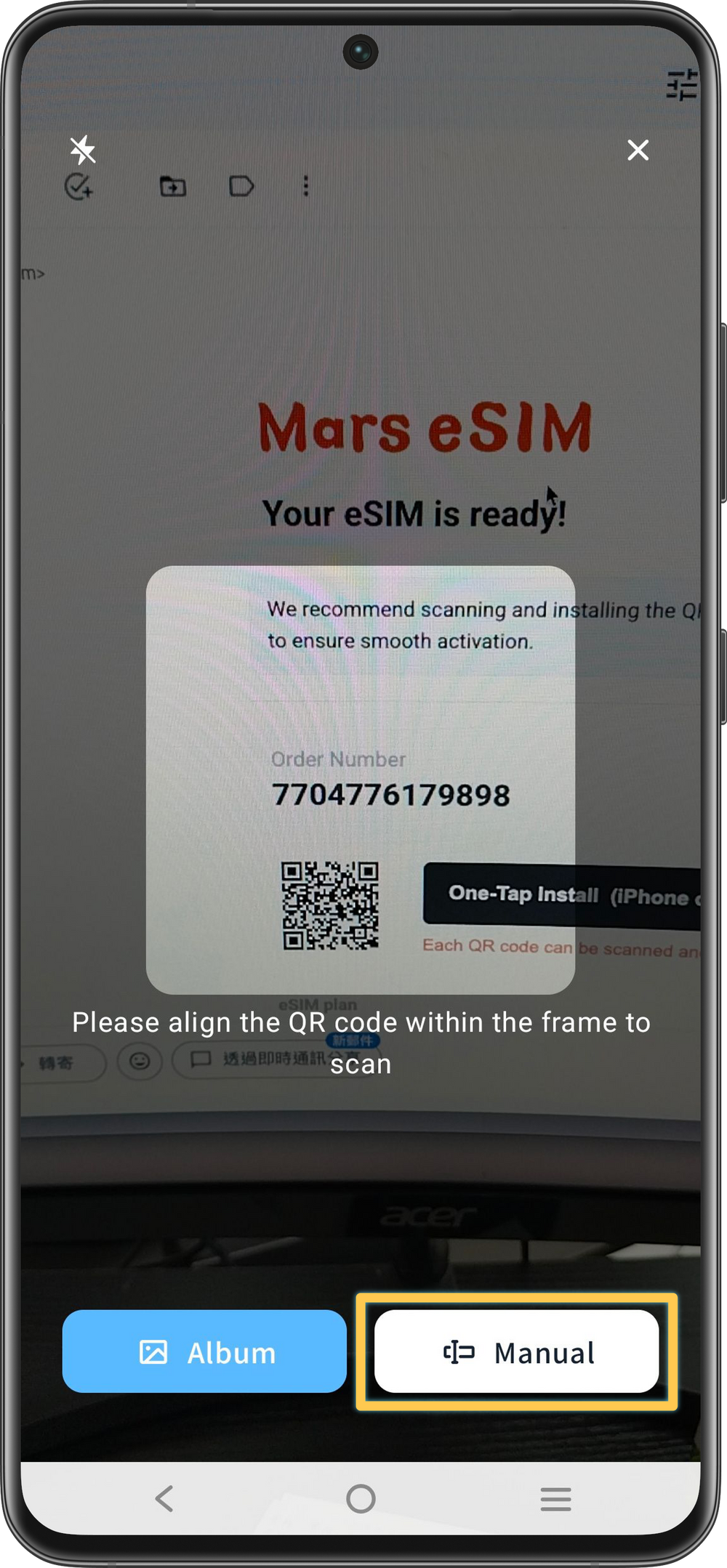
Choose a method to add your plan.
Scan the QR code in your order email.
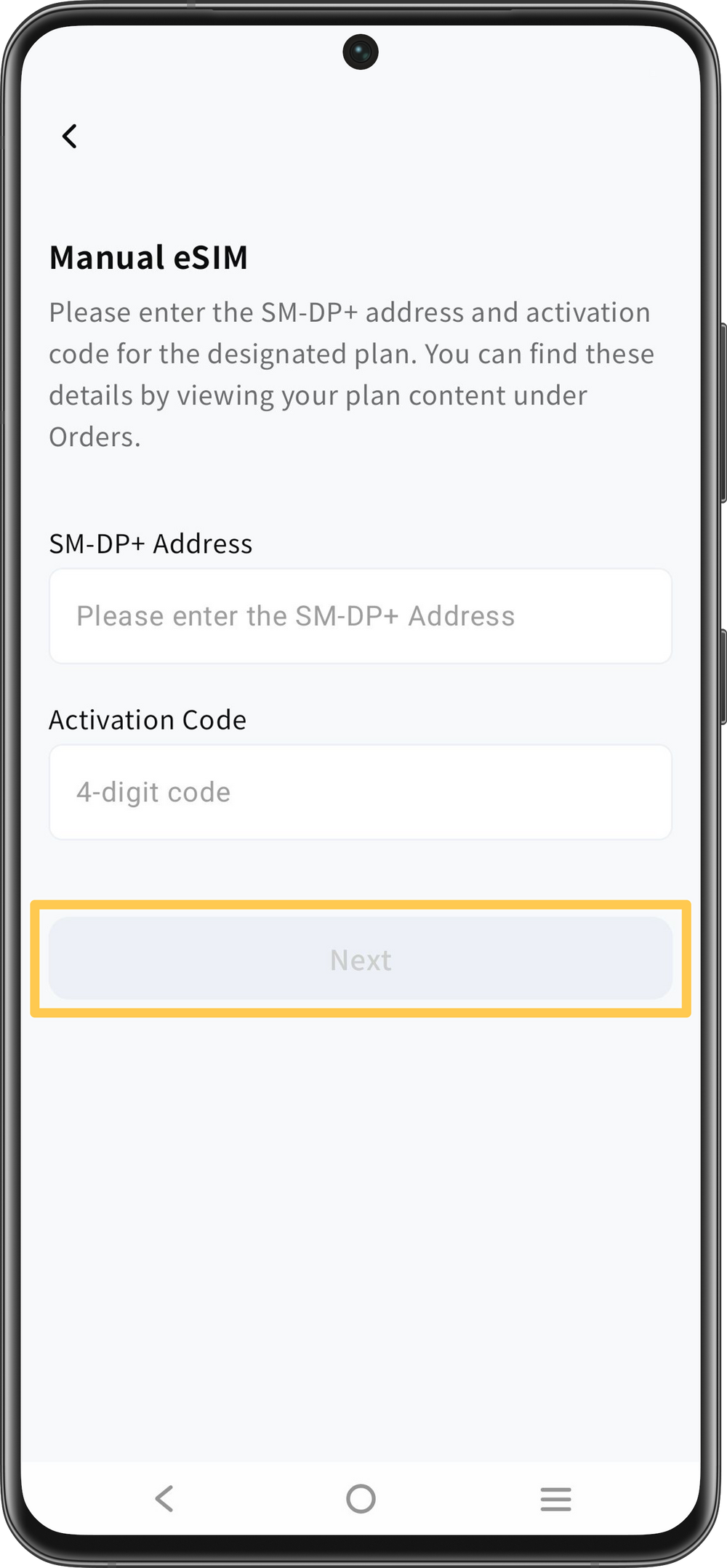
Choose a method to add your plan.
Enter the SM-DP+ Address and Activation Code from your order email, then tap “Next”.

Choose a method to add your plan.
Save the QR code from your order email, then select it from your photos.
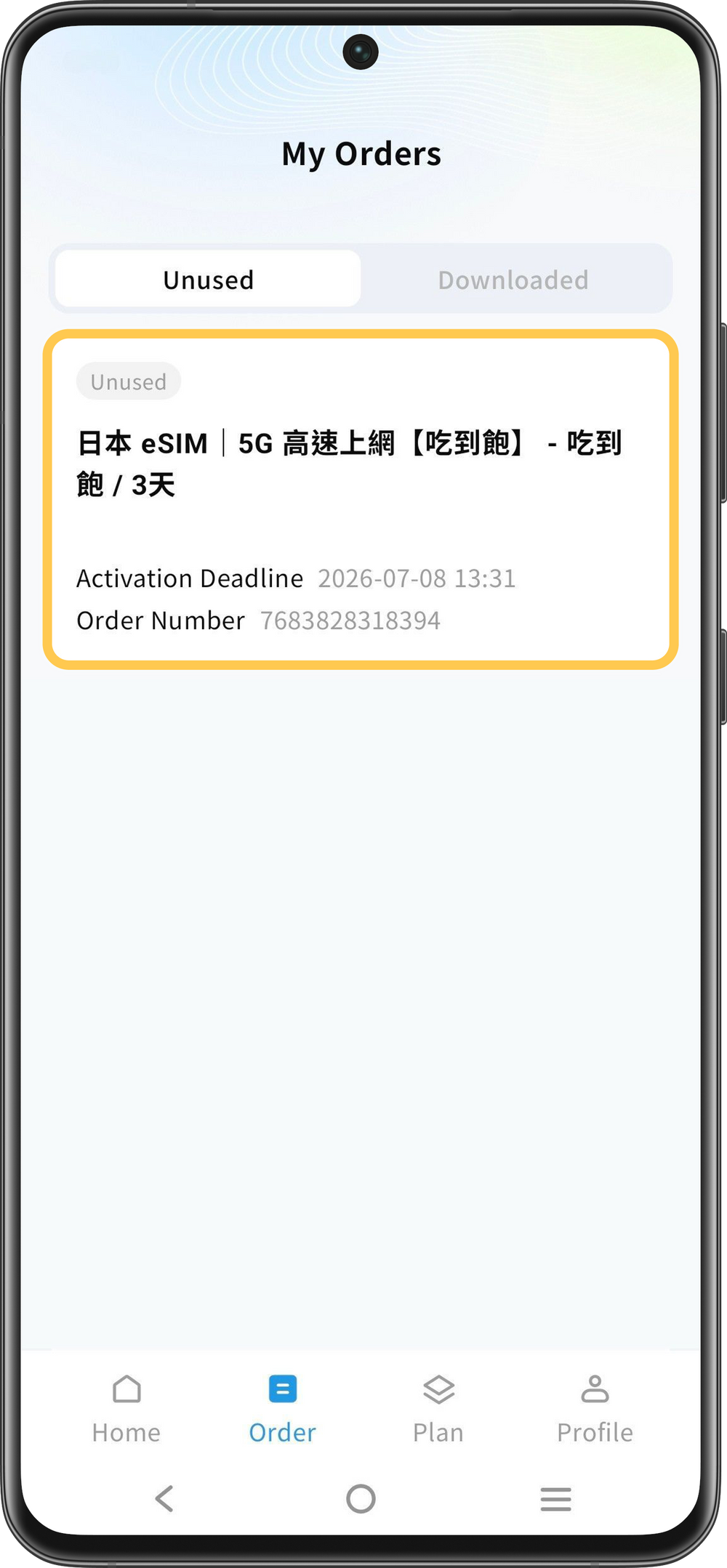
Choose a method to add your plan.
Open “Orders” and select the plan you want to install.
For plans purchased from the Mars eSIM store.
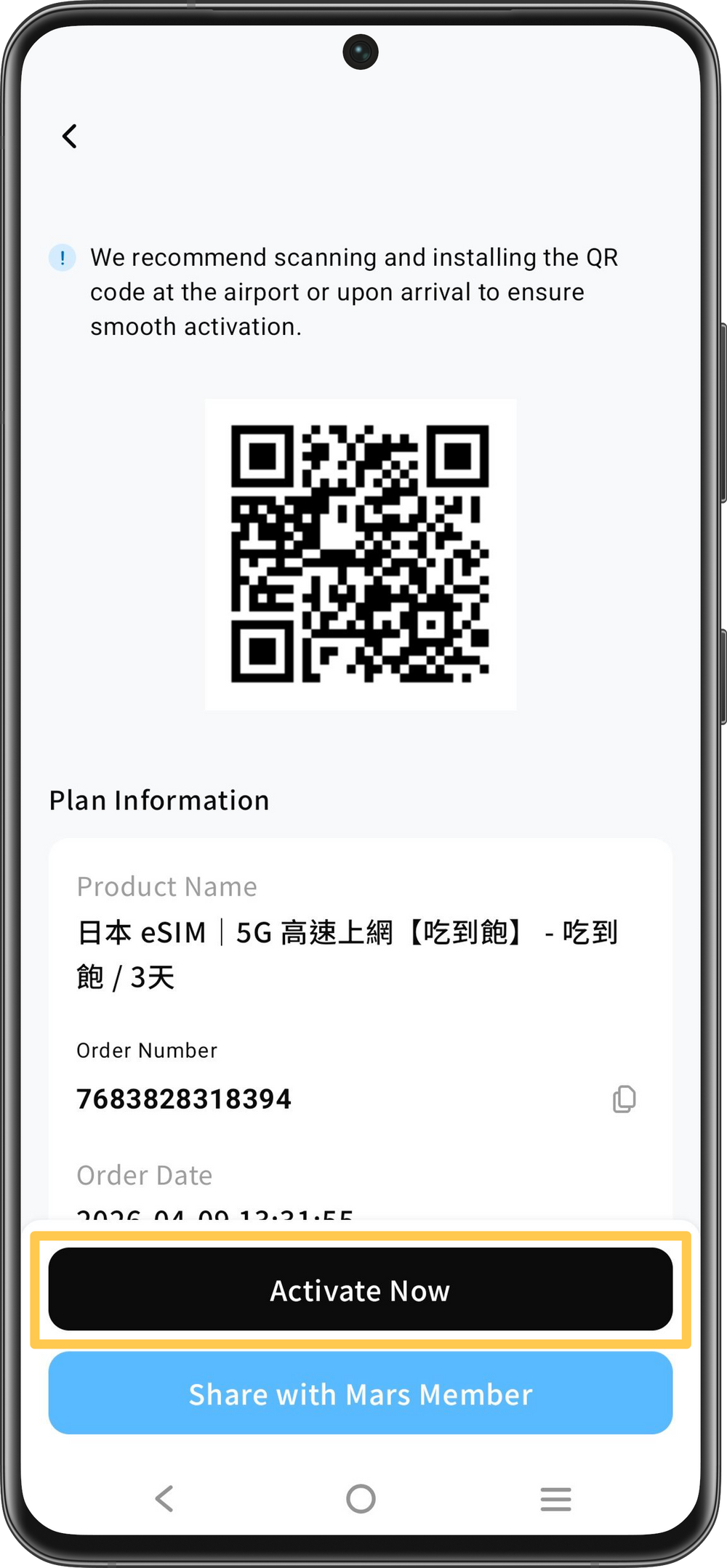
Choose a method to add your plan.
Tap “Activate Now”.

Tap “Download” and wait for the download to finish.
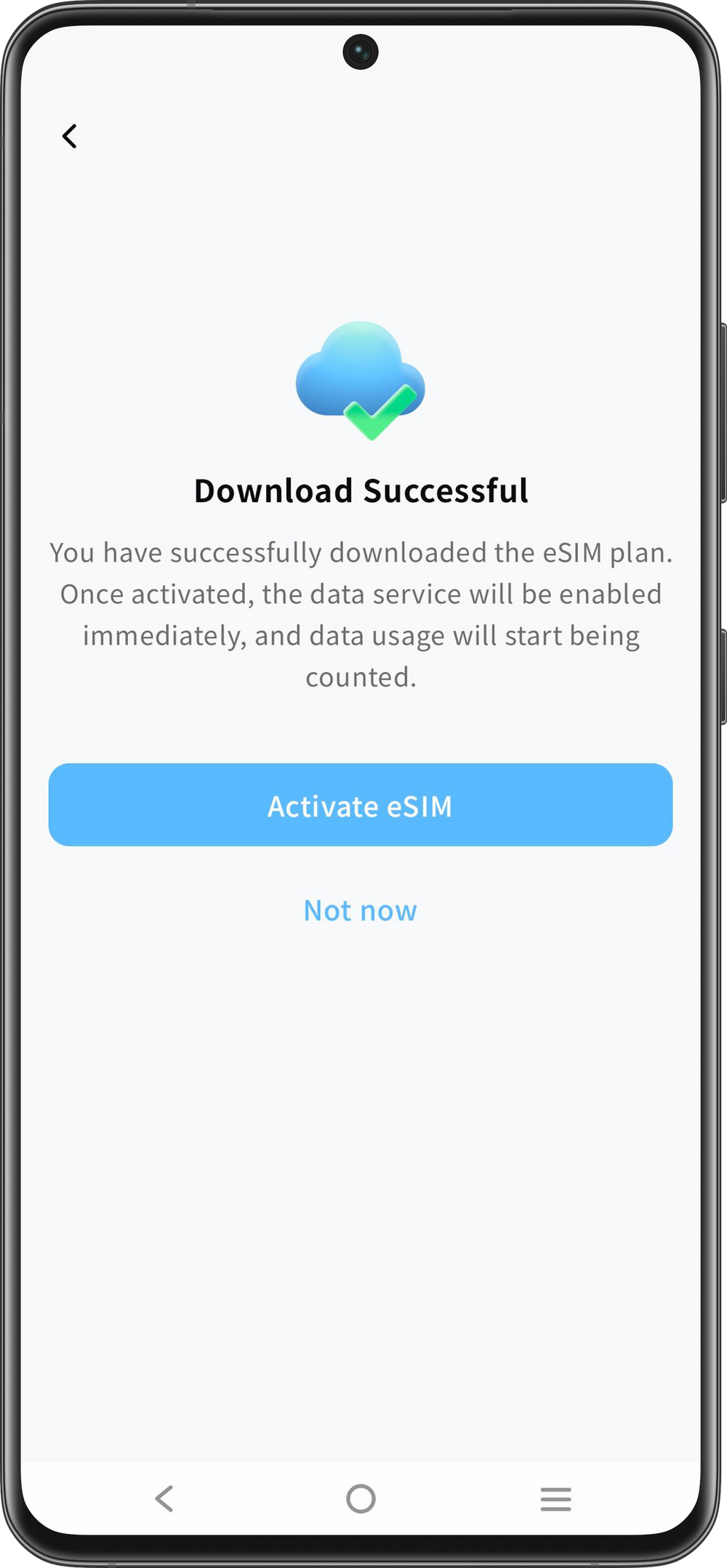
Tap “Not Now” if you haven’t arrived yet, or “Activate” if you have.

Tap “Plans” and select your travel plan.
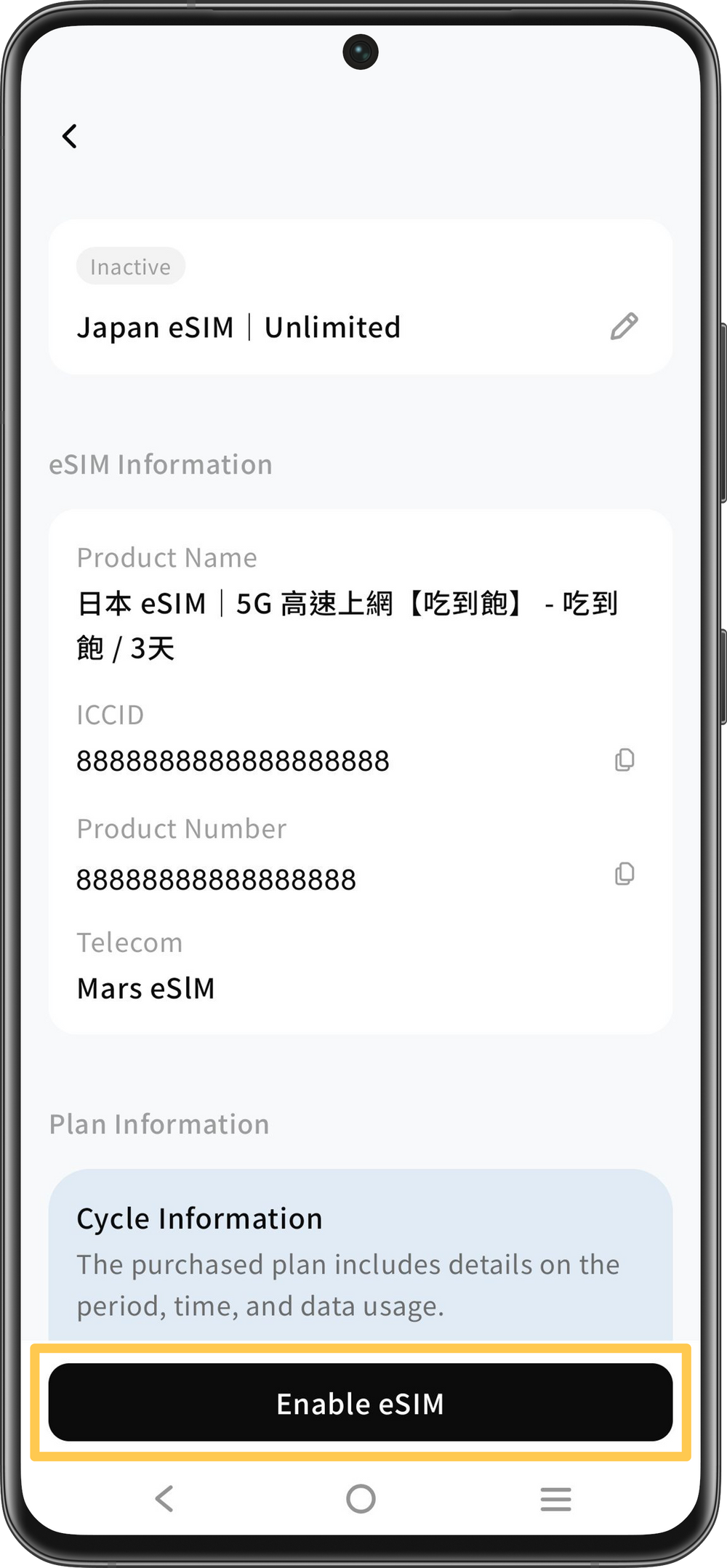
Tap “Activate eSIM”.
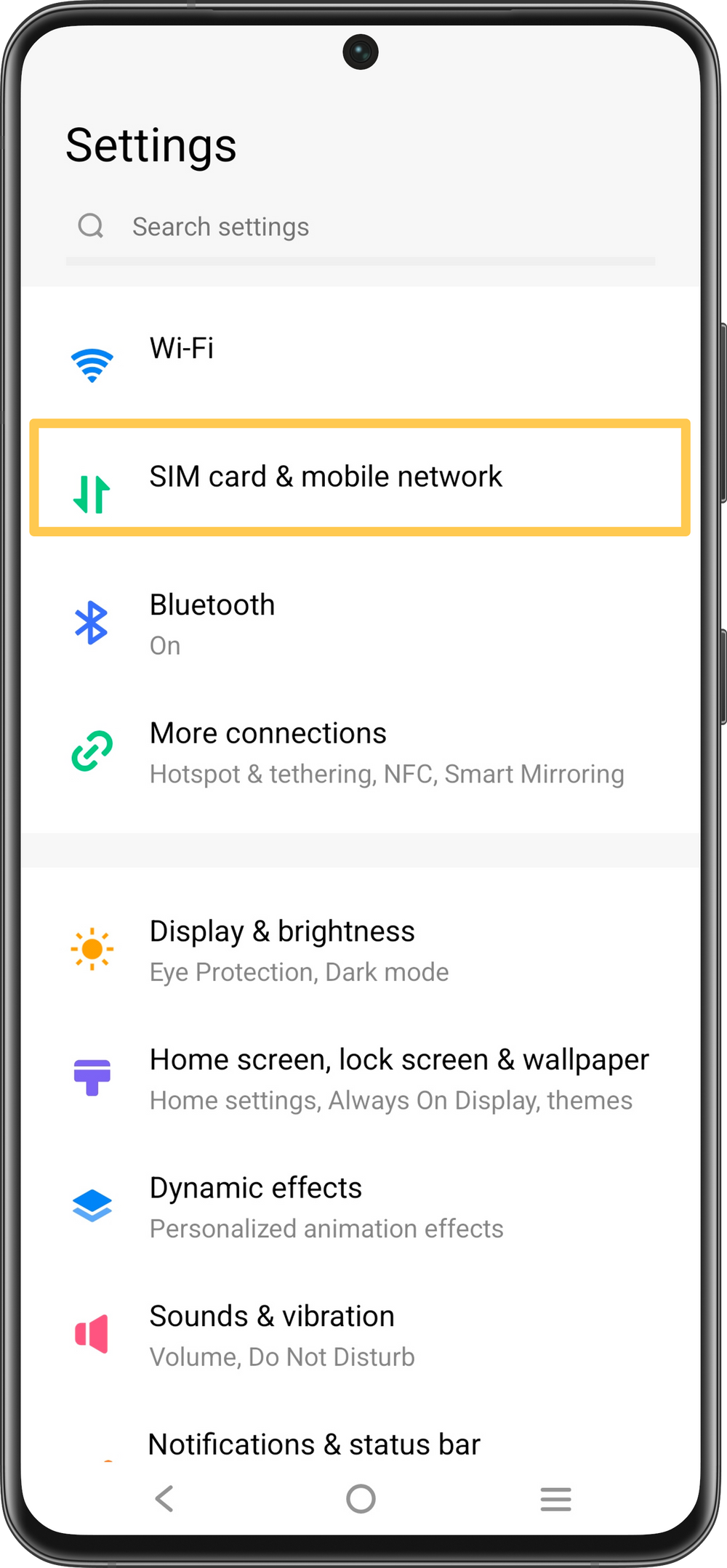
Open Settings and tap “SIM Cards & Mobile Network”.
Menu names may vary by device.
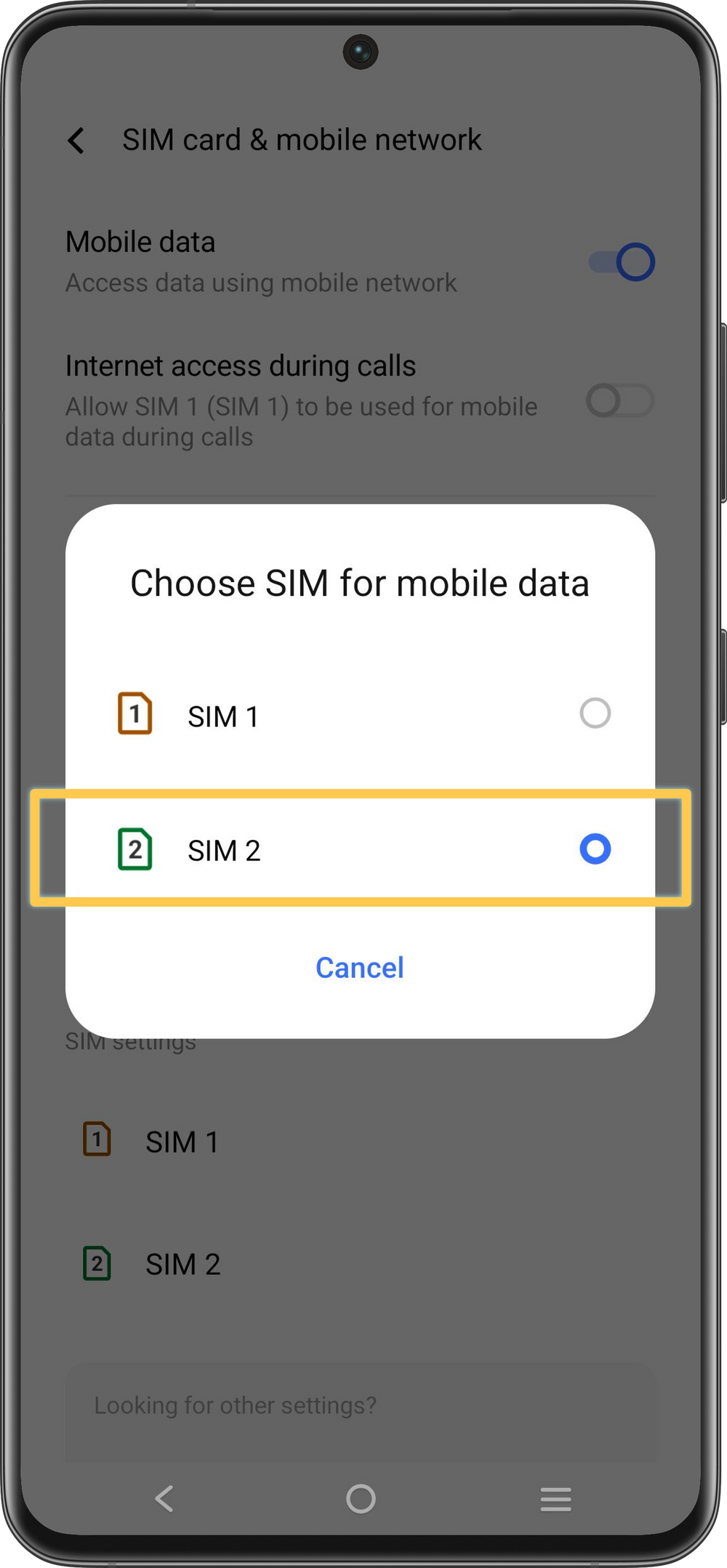
Tap “Mobile data” and select the SIM slot containing your Mars eSIM Card.
If you’ve already selected your data SIM in the app, just check that it’s correct.
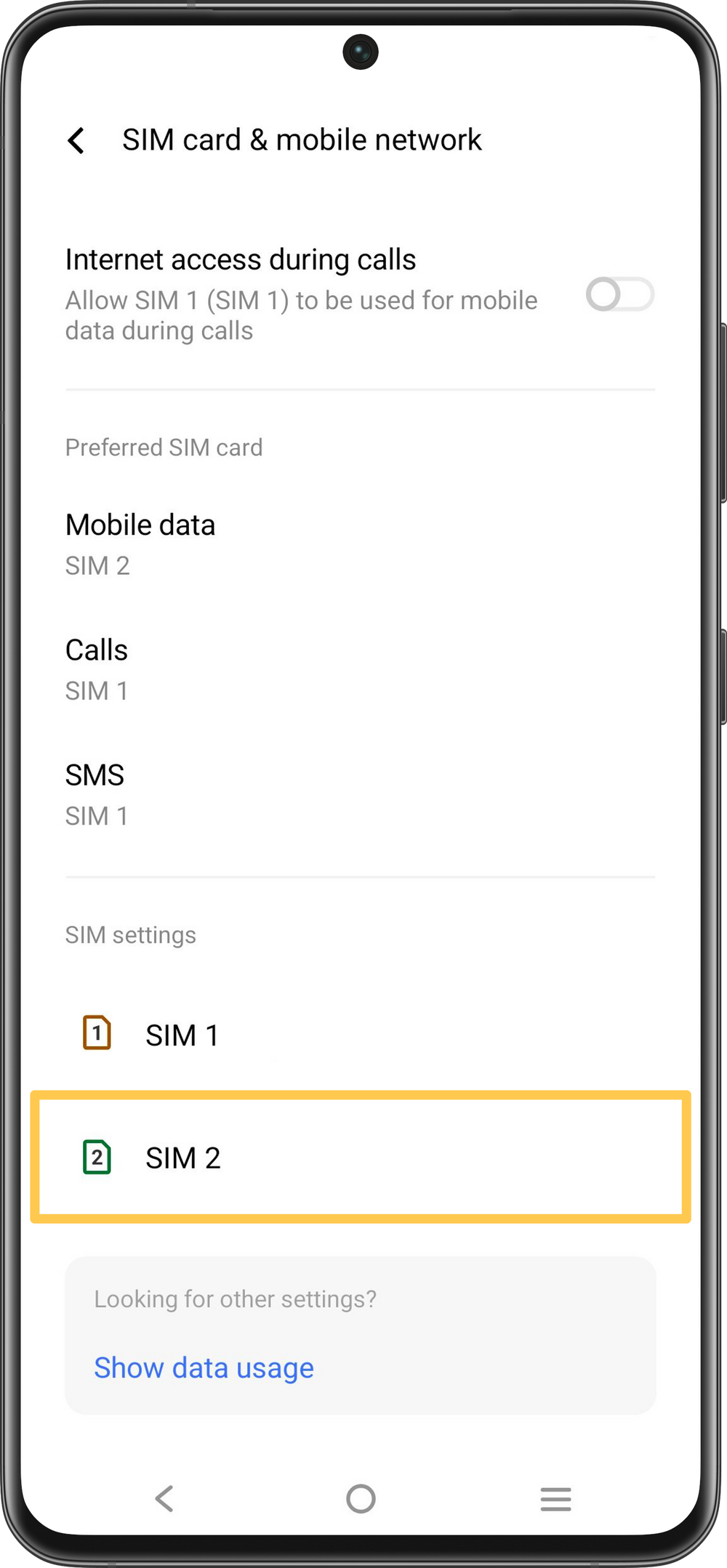
Return to SIM settings and select the slot containing your Mars eSIM Card.

Turn on “Roaming”.
Need More Info? Visit Our FAQ.
Physically, they look identical and fit into the same SIM slot. The difference lies in their function: a standard SIM card is pre-linked to a specific carrier and data plan, whereas the Mars eSIM Card is a physical bridge that enables eSIM capabilities on your device. It arrives blank, allowing you to install and switch between international eSIM plans via an app. This effectively brings eSIM functionality to Android phones that don't natively support it.
Yes! Before shipping, we will preload your selected 5G unlimited data plan onto the card.
Once you receive the card, simply insert it directly into your phone’s physical SIM slot. It will automatically connect to the network when you arrive at your destination, providing a true plug-and-play experience.
The preloaded plan must be activated within 90 days of the order date by connecting to the internet at a covered destination. If you do not connect to the local network within 90 days, the preloaded plan will expire. We recommend placing your order only after your travel itinerary has been confirmed.
When using the preloaded unlimited data plan, downloading the App is not mandatory. You can access the internet immediately simply by inserting the card into your phone.However, we still recommend using it alongside the App as the interface allows you to monitor the plan's status and expiration date at any time.
Once the preloaded plan ends, you will need the Mars eSIM App if you wish to reuse the card to install and manage multiple new global plans.
Yes, as long as your iPhone or iPad has a physical SIM slot, you can use the preloaded 5G unlimited data plan directly.
However, once the preloaded plan expires, you must switch to a compatible Android phone to install or manage additional plans through the Mars eSIM App, as these card management features are restricted to Android devices.
• Each phone currently supports the installation of only one Mars eSIM physical card.
• The Mars eSIM physical card can store 8 to 10 different eSIM data plans.
• Whether for business or travel, you can switch plans anytime via the app without the need to swap physical cards.
Since the Mars eSIM Card occupies the physical SIM slot, you will need to free it up to use our service. If you wish to keep your original number for calls, we recommend converting your primary number into an eSIM through your current carrier. (Many carriers offer the first conversion for free). Once the slot is empty, you can insert the Mars eSIM Card and enjoy its benefits.